 ReePhly
iPhone
Allow Full Access on iPhone
Allow Full Access is the iPhone setting that lets a third-party keyboard reach the internet. ReePhly needs it so Assist, Reply, and a signed-in pause check can use Claude. Spelling, predictions, and word completion stay on the phone while you type. You turn the setting on once, under Settings, General, Keyboard, Keyboards, ReePhly.
How do you turn on Allow Full Access?
Add ReePhly if it is not in the list
Open Settings, go to General, then Keyboard, then Keyboards, tap Add New Keyboard, and choose ReePhly. The screen-by-screen version is the setup guide.
Open ReePhly in that list
Tap ReePhly under Keyboards. The switch is on that keyboard's own screen, not on the main Keyboard page.
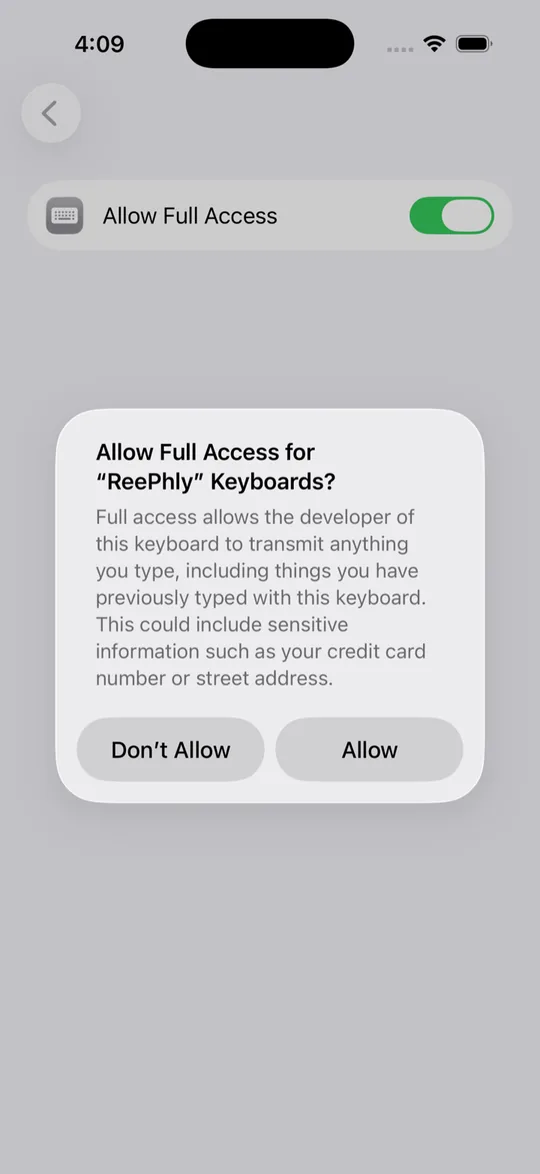
Turn on Allow Full Access, then tap Allow
iOS shows a warning that a full-access keyboard can send what you type. Read it. For ReePhly, network use is for the AI features described on this page. Tap Allow. The switch stays on.
What does ReePhly send when Full Access is on?
Spelling, word completion, next-word suggestions, and glide typing stay on the iPhone. Tapping Assist, a rewrite, or Reply sends the draft you chose so Claude can return a suggestion. If you are signed in, a pause in a normal text field can send that draft for a free grammar check. That pause check does not spend a token.
Before a cloud request, the keyboard scans on the device for things like card numbers, private keys, and labeled passwords, and it blocks the request so that text is not sent. The privacy policy names Anthropic as the model provider and is the full account of what is stored.
What ReePhly does not do with that text
ReePhly does not sell your text, does not use it to identify you or build a profile, and does not use it to train AI models. The same limits are written in the privacy policy. Full Access is also not a switch that reads your whole phone. It applies to this keyboard.
Why does iOS show a strong warning?
A keyboard can appear in any app, including ones where people type passwords. Apple uses one warning for every keyboard that requests Full Access. The warning describes what a keyboard is allowed to do, not a log of what ReePhly sends. Use Assist and Reply on the message you mean to rewrite. Do not submit passwords or card numbers through the AI features.
What if the switch will not stay on?
Open the ReePhly row inside Keyboards and confirm you tapped Allow on the dialog, not only the switch. Then leave Settings and come back. If it still flips off, remove the keyboard, add it again, and turn Full Access on immediately. The setup guide has the screenshots. If it still fails, email support@reephly.ca from the support page and include your iPhone model and iOS version.
What can you do after it is on?
Switch to ReePhly with the globe key in Messages, Mail, or any app that uses the system keyboard. Assist fixes or rewrites what you typed. Reply drafts from a message you copied. Both are described on the AI grammar keyboard page. Writing the words yourself, before you tap, is covered in how to text your boss and how to say no over text.
Common questions
What does Allow Full Access mean on iPhone?
It lets a keyboard extension use the network and some system features that a keyboard without Full Access cannot use. iOS shows the same warning for every third-party keyboard. What gets sent depends on that app.
Does ReePhly need Allow Full Access?
Yes, if you want Assist, Reply, or the signed-in pause check. Those features call Claude over the internet. On-device spelling can run without that network step, and the AI features cannot.
Can I turn Allow Full Access off?
Yes. Settings, General, Keyboard, Keyboards, ReePhly, then turn the switch off. Assist and Reply will not be able to reach Claude until you turn it on again. You can also remove the keyboard from that list.